
Passport Photo Maker
Resize and compress your photo to the exact size and KB limit required by passport, CNIC and job application forms. Your photo never leaves your device.
Select Photo
Choose Size & Options
Adjust Photo
Create & Download
Print Sheet (multiple copies on one page)
About Passport Photo Maker
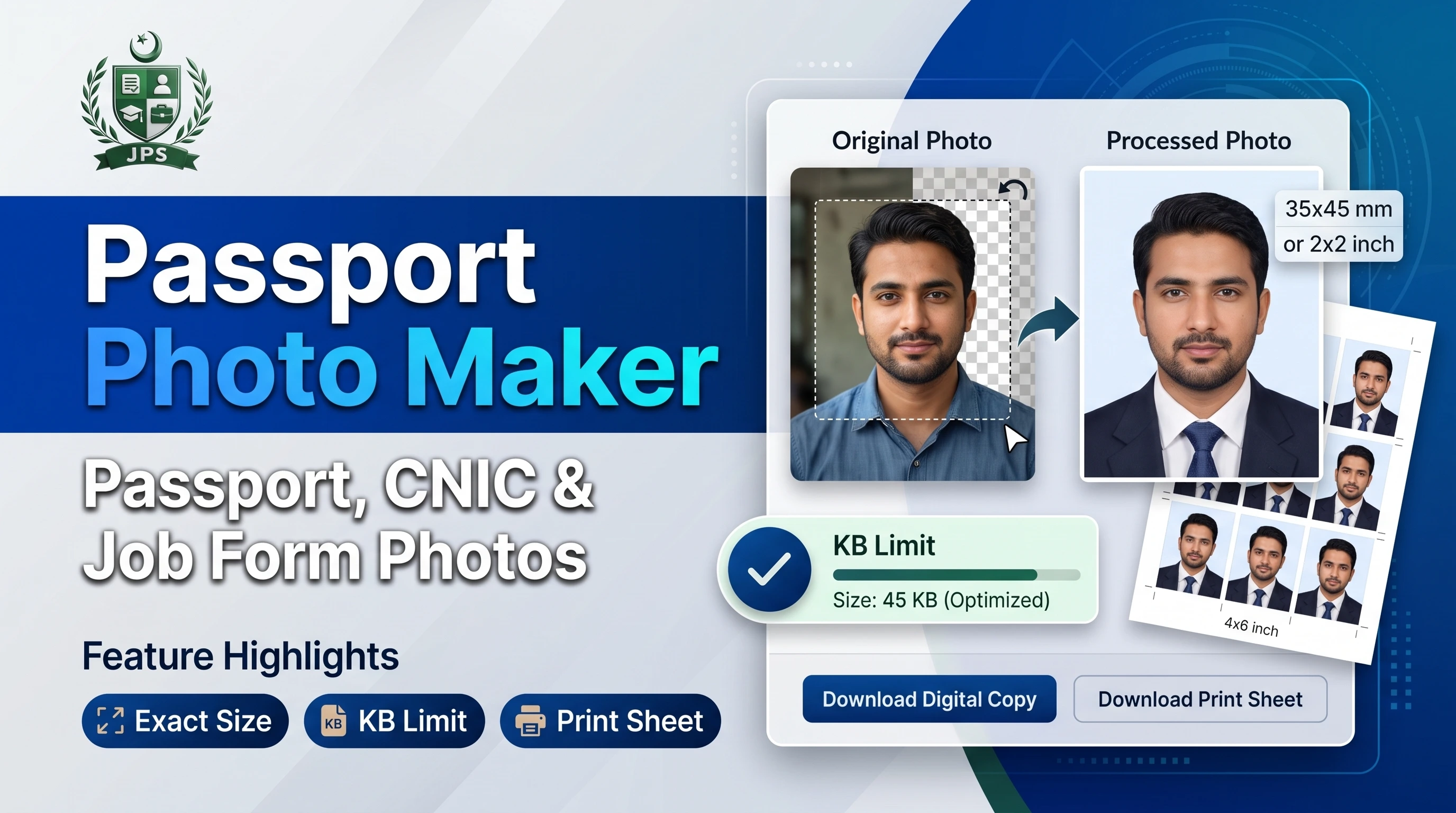
The Passport Photo Maker helps you turn any clear photo into a correctly sized passport, CNIC or job form photo in a few taps. You choose the size (for example 35 x 45 mm), place your face inside the guide, set an optional file size limit in KB and download a ready JPG. You can also download a print sheet with several copies, so you can print them at any photo shop or at home.
Everything runs inside your browser. Your photo is never uploaded to JPS or to any other server, which matters because passport and CNIC photos are personal documents. The tool works on mobile phones and computers, and you can even take the picture with your phone camera.
Key features
- Ready sizes for Pakistan passport / CNIC / job forms (35 x 45 mm), US 2 x 2 inch, Saudi and UAE visa, stamp size and common pixel sizes
- Custom size in mm, cm, inch or pixels with 72 to 300 DPI
- Drag, zoom, rotate, brightness and contrast with an on-screen face guide
- Maximum and minimum file size in KB for strict online forms
- Background colour fill, JPG or PNG output
- Print sheet for 4 x 6 inch, 5 x 7 inch, A4 or Letter paper with cutting guides
Common photo sizes
| Use | Size | Pixels at 300 DPI |
|---|---|---|
| Passport / CNIC / job forms | 35 x 45 mm (3.5 x 4.5 cm) | 413 x 531 px |
| US visa / passport | 2 x 2 inch (51 x 51 mm) | 600 x 600 px |
| Saudi visa | 40 x 60 mm | 472 x 709 px |
| UAE visa | 43 x 55 mm | 508 x 650 px |
| Stamp size | 20 x 25 mm | 236 x 295 px |
When do you need this?
- Government job application forms that ask for a recent passport size photograph
- Online portals that accept only JPG photos under a fixed KB limit, for example 50 KB
- CNIC, passport, visa, domicile and admission forms
- Printing several photos on one 4 x 6 inch or A4 sheet instead of paying for each photo
Common mistakes to avoid
- Using a photo with a coloured, patterned or shadowed background
- Cropping so tightly that the top of the head or chin is cut off
- Using a blurry photo, a screenshot or a photo with a heavy filter
- Ignoring the size, format or KB limit given in the advertisement
- Printing with "fit to page", which changes the real printed size
How to use
- Select your photo (a front-facing photo against a plain light background).
- Choose the size your form or passport office asks for.
- Drag and zoom the photo so the face sits inside the guide.
- Set a file size limit in KB if your form asks for one.
- Press Create Photo and download it. Optionally download a print sheet.
- اپنی تصویر منتخب کریں (سامنے سے لی گئی، سادہ ہلکے رنگ کے پس منظر کے ساتھ)۔
- وہ سائز منتخب کریں جو آپ کے فارم میں مانگا گیا ہے، مثلاً پاسپورٹ / شناختی کارڈ / جاب فارم کے لیے 35×45 ملی میٹر۔
- تصویر کو انگلی یا ماؤس سے کھینچ کر اور زوم کر کے چہرہ ہرے گائیڈ کے اندر رکھیں۔
- اگر فارم میں فائل سائز کی حد ہے (مثلاً 50 KB) تو "Max file size" میں وہ عدد لکھ دیں۔
- "Create Photo" دبائیں اور تصویر ڈاؤن لوڈ کریں۔ پرنٹ کے لیے "Print Sheet" بنا کر کسی بھی فوٹو شاپ سے پرنٹ کروا لیں۔
 EasyPaisa
 Jazz Cash
 Meezan Bank
 Faysal Bank
